 Sweta
Sweta
Overheating of your PC means you are giving more load to the PC than it could handle. It shuts down your PC slowly and may damage your internal program. If it is not checked, it leads to permanent damage and loss of all the data. Overheating can be caused by many internal and external factors which are left unseen sometimes. In this blog, we will see possible reasons for overheating.
Overheating can be prevented by applying some methods like installing best pc cleanup software and by some physical cleaning. Let’s start the drive.
Reasons of Overheating
Overheating can be caused by both internal or external factors. Internal like too much load of files or applications, and external like buildup of dust that block the cooling fans, which raises temperature. Here is more issue that leads to hot device:
- Too many applications running – It becomes difficult for your PC to process if too many apps and programs are running in the background. It increases workload through which your device heats up faster and causes potential damage to the apps.
- Unresponsive application – Applications that freezes due to less storage or some bugs continue to use CPU which ends up in heating of device.
- No working of fans – Cooling fans helps in flowing air through PC systems which maintain the internal temperature of the device. If it damages or does not function properly, then it can’t reduce the temperature. To know if your fans are damaged or not working, there are signs like, fans make strange clicking noises while working and other weird sounds.
- Blocked air vents – Restricted airflow also cause overheating. If there’s something in the way of vents like dust, obstacles or clogged vents, passing of hot air eventually results in a heated device.
- Software not updated – An outdated software puts load on your device to work properly. This pressure forces the CPU to work harder by which it gets heated. Your software needs to be updated timely.
- High resource usage – Running your demanded applications that consume more power can heat your CPU and GPU, which makes your device overheated.
- Background process – Applications that are not in use running in background can heat up your CPU and GPU which leads to overheating and slows down the working of the device.
- Ambient temperature – Using a device at a preferable temperature is better. If you are using a PC in a high room temperature or environment, it heats your device fast. Work in a cool and ventilated environment.
Fix Overheating of CPU
- CPU cooler- It plays an important role in keeping CPU cool and over time, it gets clogged by dust and debris. It is necessary to give it a routine cleanup. Here’s how, to clean coolers:
- Turn the device off and unplug it.
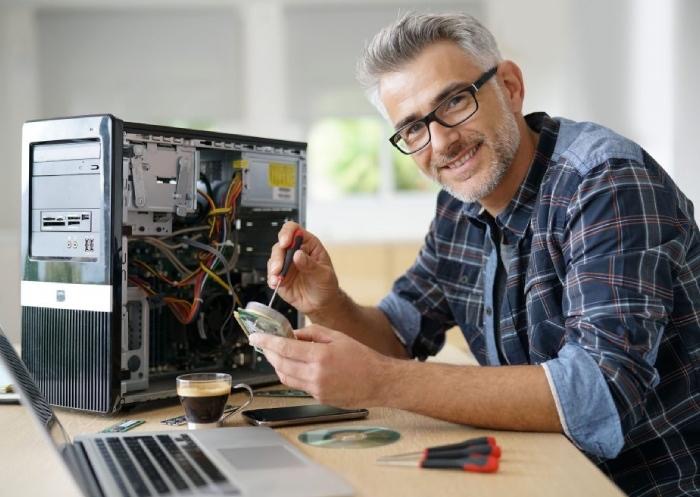
- For the desktop, open the case and for laptops (if possible) remove the bottom panel.
- Use compressed air for blowing out the dust from the cooler, blades and heatsink.
- If the dust is stubborn and not removed by air, use a soft brush and remove the dirt.
- Hold the fan in place carefully to avoid damage while cleaning.
- Avoid overclocking- It is the process of increasing the CPU’s clock speed. It helps in boosting the performance of the device but also heats it up. If your CPU is overlocked, reset it to the default setting. Access your BIOS or UEFI setting by pressing Del + F2 or F1 (usually works) and reset it.
- Update BIOS and Drives- Sometimes, CPU run inefficiently when BIOS or drives are outdated. This makes your device heated. Keep checking for the updates from the manufacturer’s website. If it is available, follow the instructions given to install carefully. If BIOS fails to update, it damages your device.
- Thermal paste replacement- It is a heat-conductive material, which helps in heat transfer between CPU and heatsink. This paste dries out after some time, so make sure to replace it. Remove the heatsink from the CPU and clean off the old paste. Then apply a small amount of new thermal paste to the desired spot and attach the heatsink again. Do not use too much paste, it can seep out due to heat and can cause damage.
- External cooling system- it is advised to use a laptop on a flat and hard surface because most of the device’s ventilation system draws cool air from the bottom. If your laptop is still facing issues, add cooling pads which blow air in upward direction to the laptops’ vents.
- Uninstall apps- Find and remove the apps that are not in use or not needed. They consume power in the background and take up space to drive unnecessarily. Turn off background usage of applications that are not required from settings.
- Remove malware- Malware might be one of the reasons for overheating. Scan your device to detect any malware and resolve it. It slows down the performance of the device.
- Physical use- Using a device at high temperature like in sunlight can also heat the CPU. Use devices in an appropriate temperature with an adequate environment.
Here are some methods and practices that can prevent the overheating of the CPU. limit your usage and keep the device safe with regular maintenance and cleaning. Even if this doesn’t work, contact your nearby stores.